Building practice tests and assessments
Make tests for your group from the course’s questions, your own questions, or both. Give them out online, print them, or turn them into a Google Form, and see how each student did.
Start on your coach dashboard, with the event picked, and open the Tests tab. Your group’s tests are listed right there, with New test.
Practice or assessment?
| Practice | Assessment | |
|---|---|---|
| Tries | As many as they like | One |
| Time | A goal: the clock won’t stop them | Timed from the moment they start |
| Scores | Right away, with explanations | After the test closes |
| Closing time | None: it stays open | Required; you can change it or close it early |
| Good for | Homework, warm-ups, review before a tournament | Checking what the group knows, like a tournament |
Build a test
Choose New test
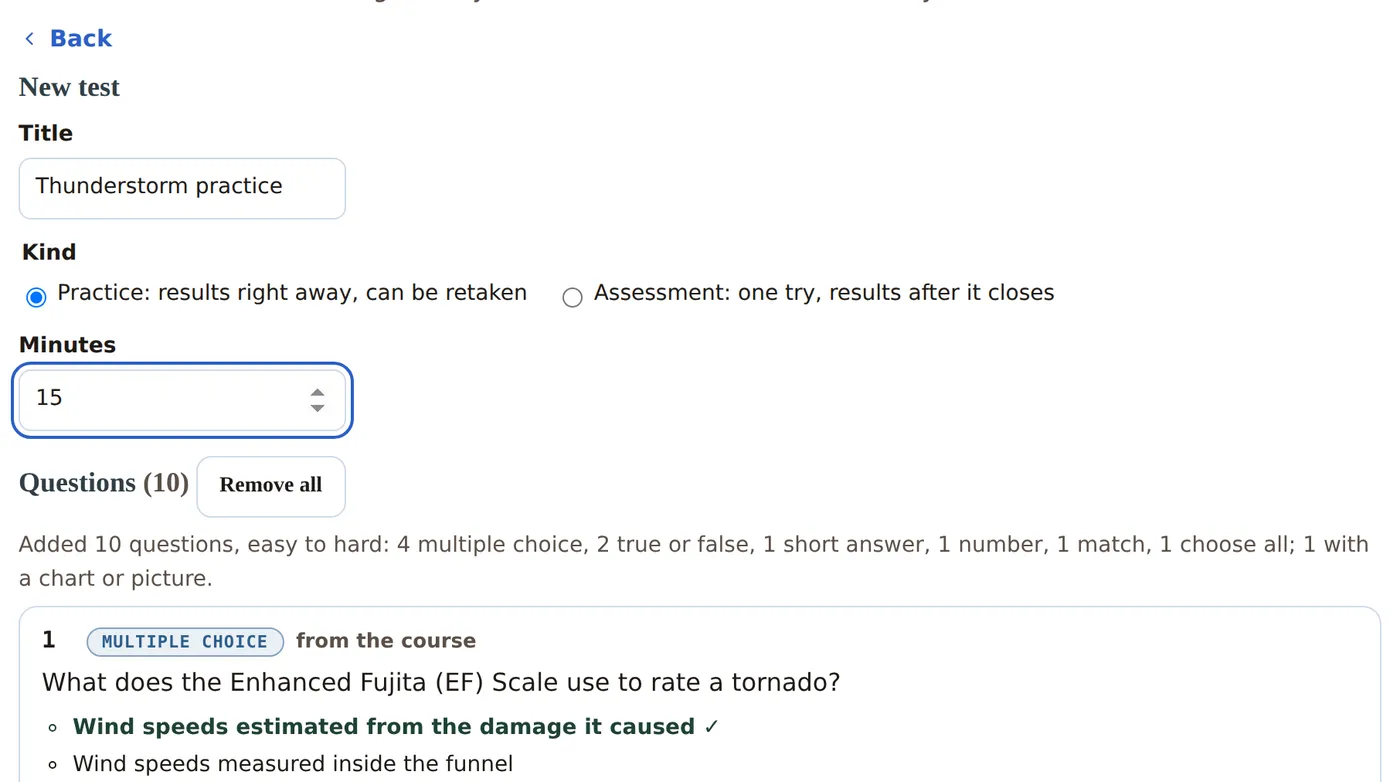
A new test starts with a tournament mix: questions from across the course, like a real tournament test, easy to hard. Give it a title, pick Practice or Assessment, and set the minutes.
 (opens full size)
Change the questions
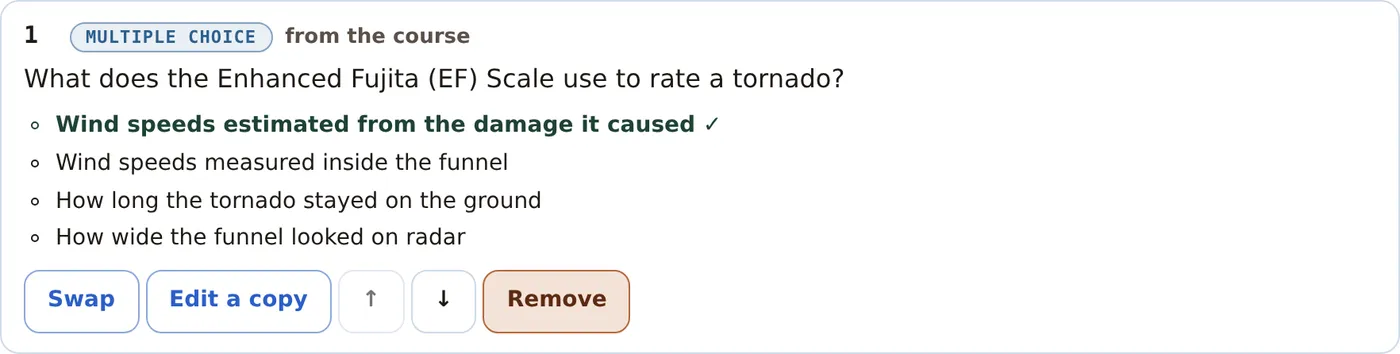
Every question shows in full, with its answer marked. Each one has buttons to Swap it for another of the same kind, Edit a copy, move it up or down, or Remove it. Editing changes only this test’s copy, never the course.
 (opens full size)
Add from the course
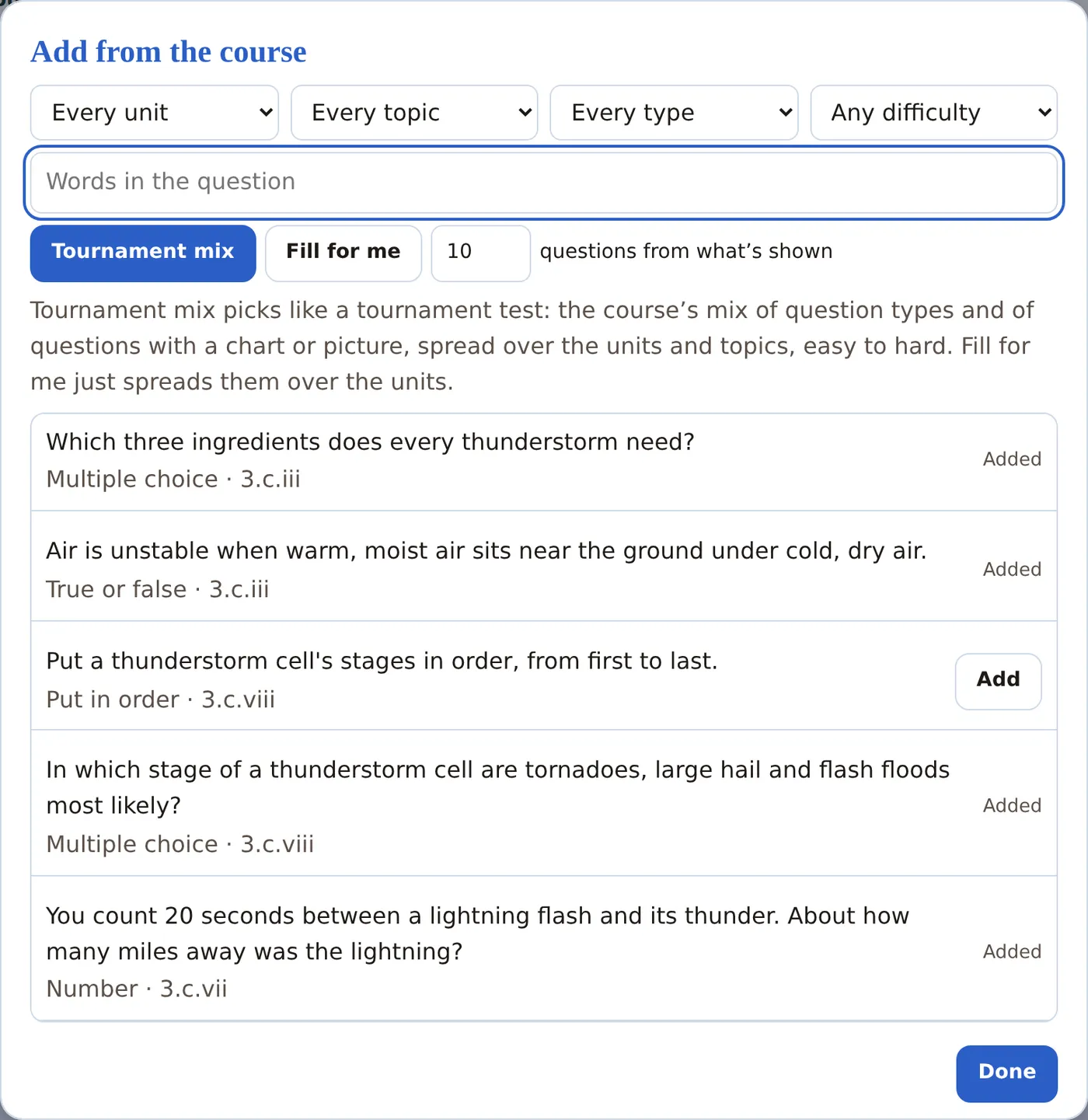
Choose + Add from the course to pick questions yourself. Narrow the list by unit, topic, kind of question, difficulty or words in the question, then Add the ones you want. Tournament mix and Fill for me add a set number for you from what’s shown.
 (opens full size)
Write your own
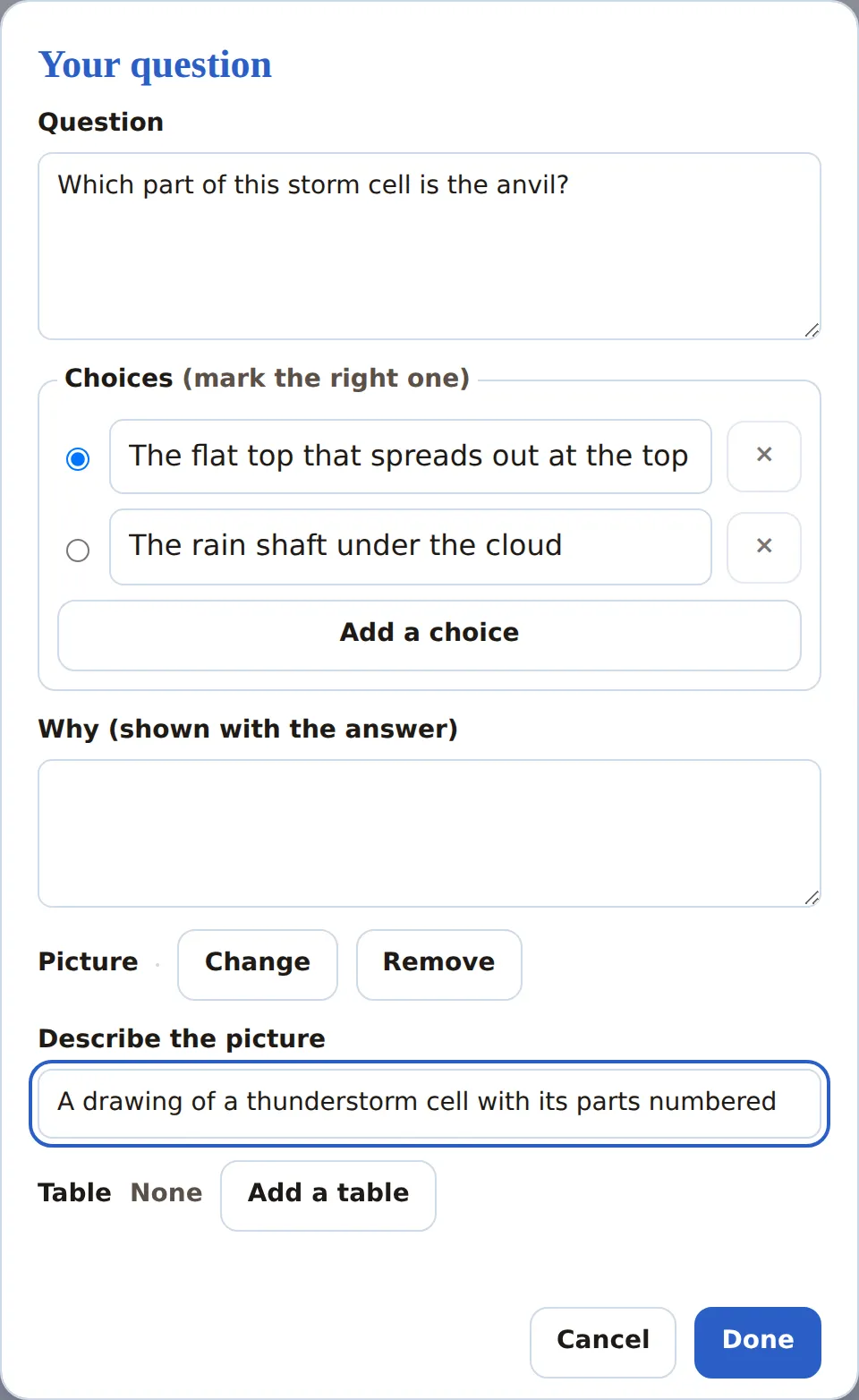
Choose + Write multiple choice or + Write true or false. Type the question and choices, pick the right answer, and add an explanation students see afterward. You can use one of the course’s pictures: describe it for students who can’t see it.
 (opens full size)
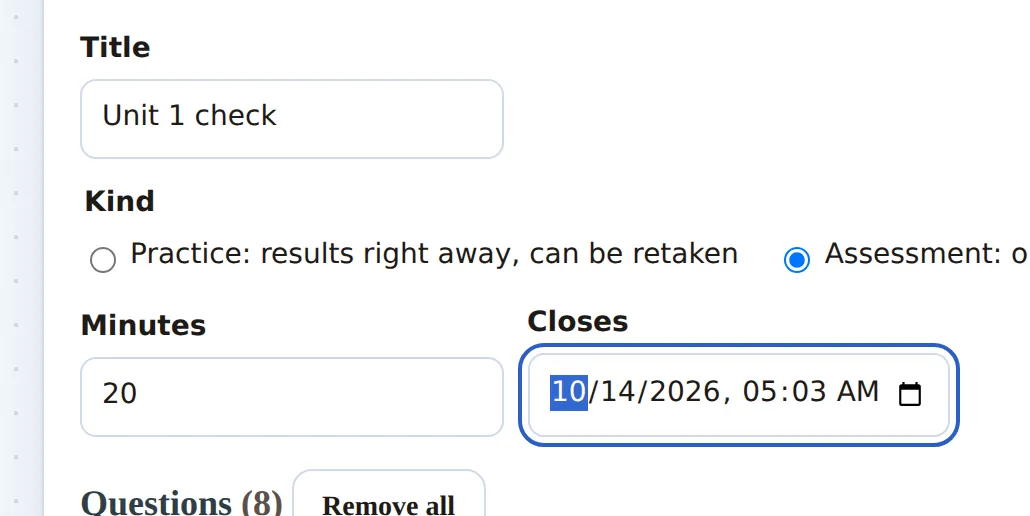
For an assessment, set when it closes
Pick Assessment and choose the closing date and time. Students can start any time before then.
 (opens full size)
Save test
It’s saved as a draft: only you see it. Come back and Edit it as often as you like. Answer key shows every answer at a glance.
Give it to your group
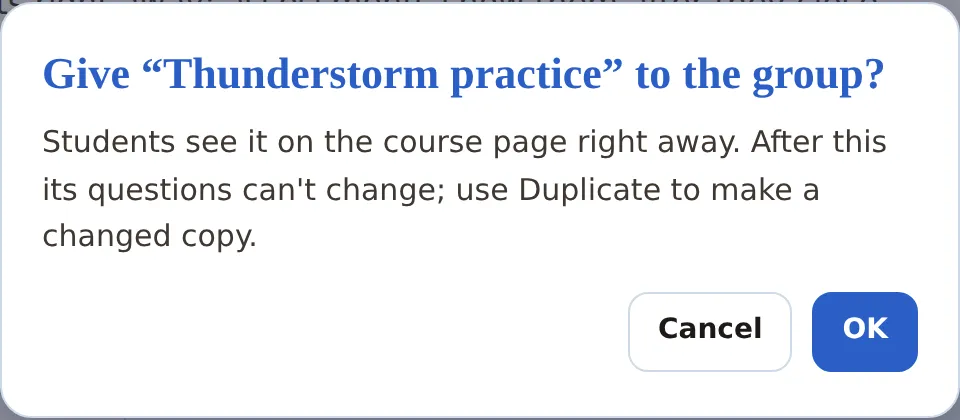
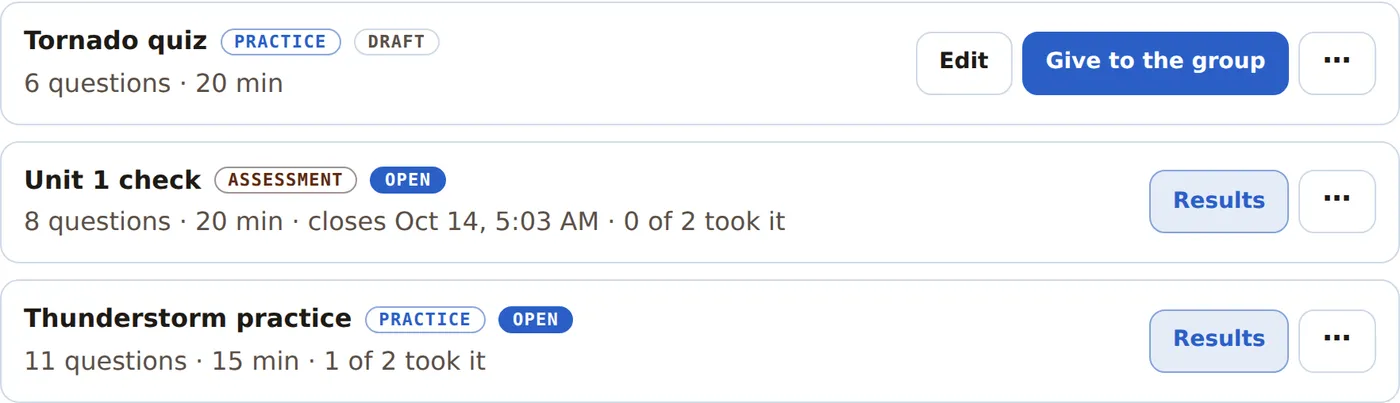
On the list of tests, choose Give to the group on a draft. Students see it on the course page right away.
 (opens full size)
Once it’s given out, its questions are locked, so every student answers the same test. Found a mistake before anyone started? Choose Take back from its … menu: it goes back to a draft, students stop seeing it, and you can fix it and give it again. After a student has started, use Duplicate to make a fixed copy.
 (opens full size)
What students see
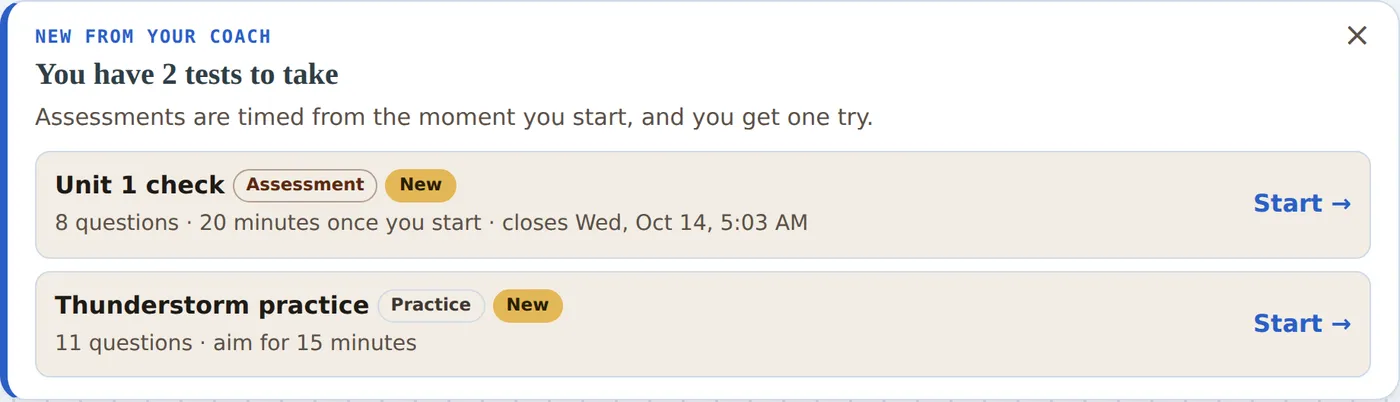
A New from your coach note at the top of the course page lists the tests to take, and the Test step shows how many are waiting. Tests are also listed with the course’s practice exams.
 (opens full size)
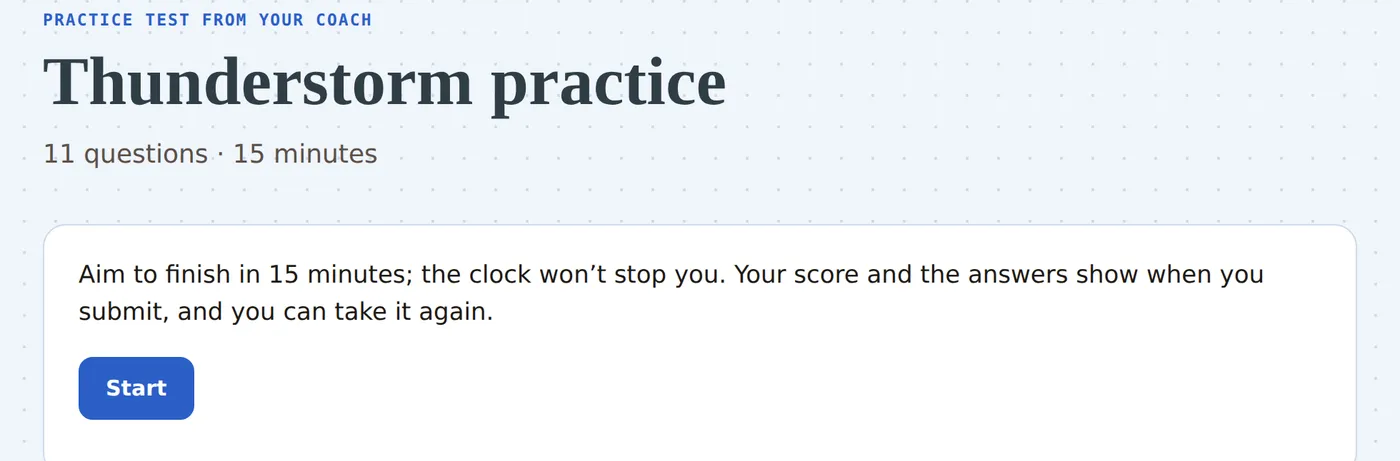
Before they begin, students see the rules for that kind of test: for a practice test that the clock won’t stop them, for an assessment that they get one try and see their score after it closes.
 (opens full size)
Results
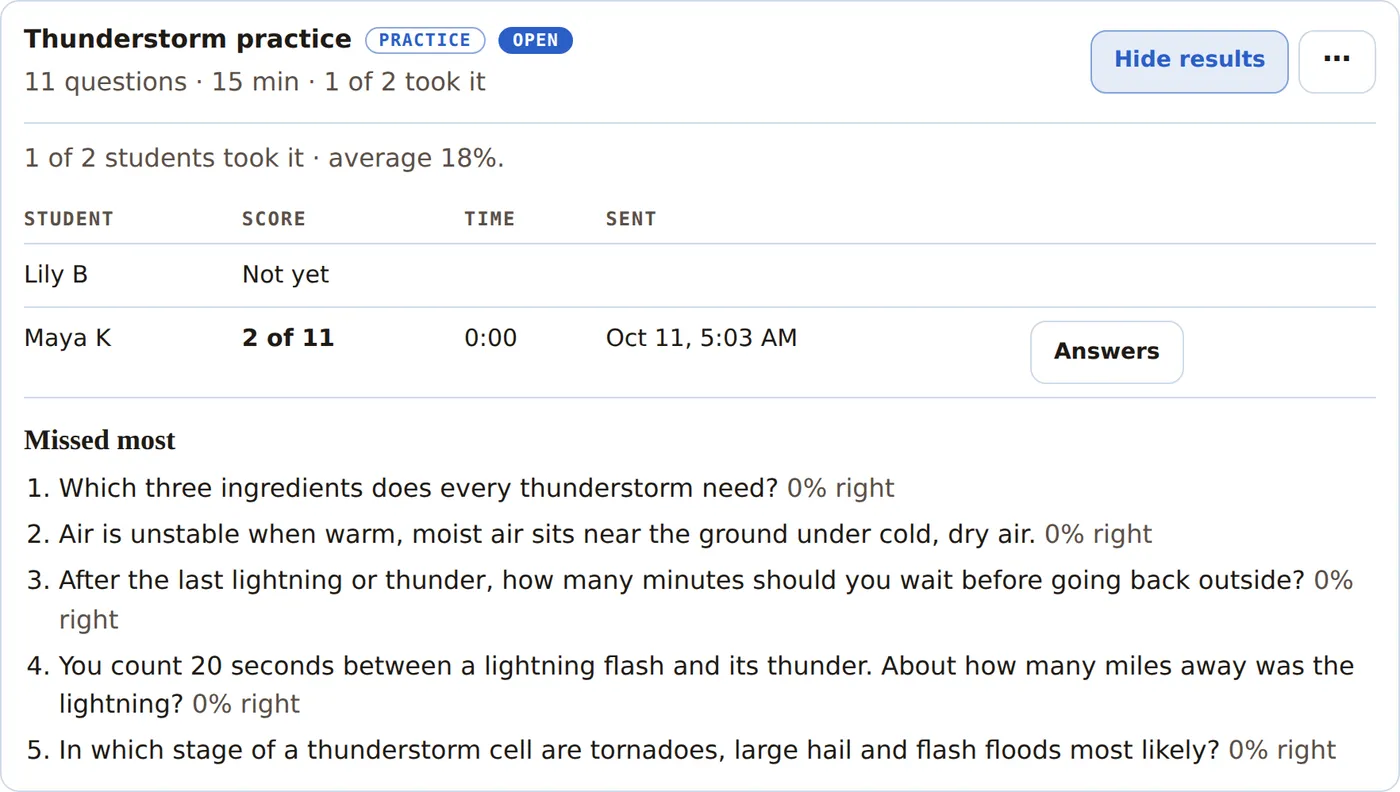
Choose Results on a test. Under it you’ll see how many of your group took it and the average, each student’s score, time and when they sent it, and the questions missed most. Answers shows one student’s answers, question by question.
 (opens full size)
Assessment scores show to students after the test closes. You can see results as they come in.
Print, Google Forms and more
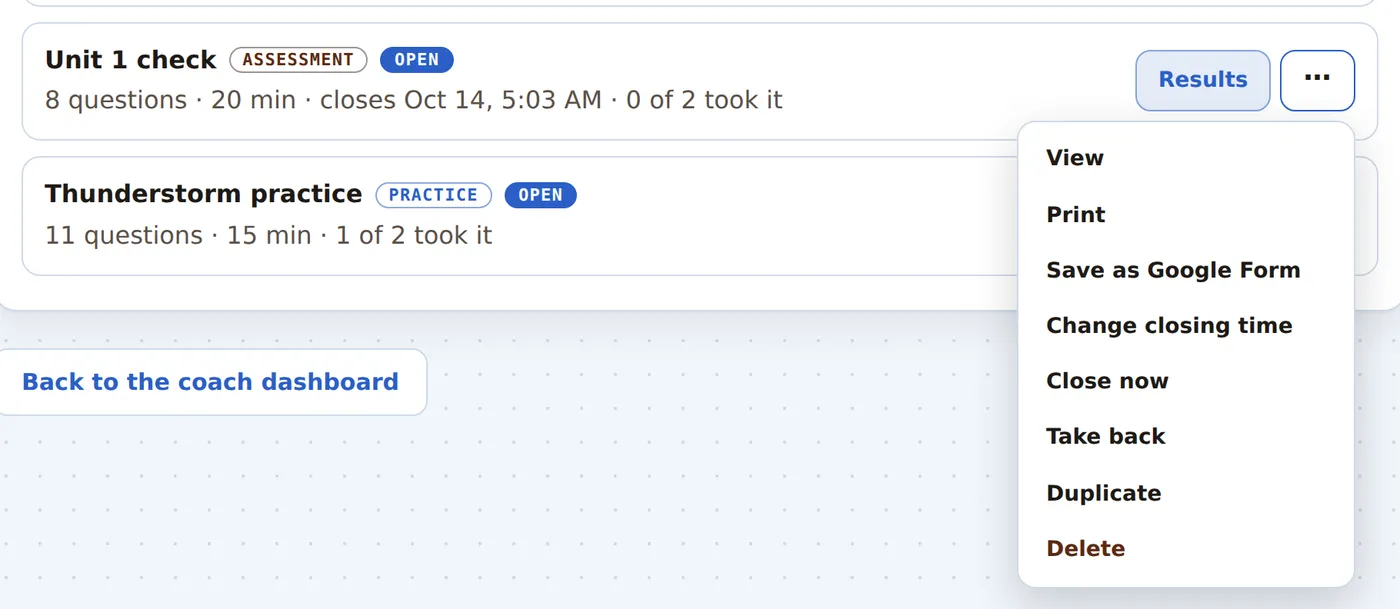
Each test’s … menu has the rest:
 (opens full size)
- View: see the test as a whole.
- Print: a paper copy, and an answer key on its own pages.
- Save as Google Form: makes the test as a quiz in Google Forms, with your Google account, pictures and charts included.
- Change closing time and Close now: for assessments. A new closing time opens a closed one again.
- Take back: while no student has started.
- Duplicate: a new draft copy, to change and give again.
- Delete: removes the test and its results.
The same order everywhere. The answer choices are mixed up once, and the test keeps that order online, on paper and in the Google Form, so an answer key works for all three.
Questions
Does editing a question change the course?
No. A test keeps its own copy of every question. To fix the course itself, see Writing course content.
Who can take my test?
Only the students in your group for that event. Another group never sees it.
Can a student retake a test?
A practice test, as often as they like. An assessment, once.
What about Disease Detectives?
Disease Detectives has its own Test Builder in the Tests tab of your coach dashboard, with the same idea: drafts you edit and release, Results with how many took it, and the same kind of … menu. It adds Field Exam parts like graphs and case studies.
Can parents see tests or scores?
A parent linked to a student sees that student’s scores on My student, and their answers once the student can see them: an assessment’s after it closes. Parents never see the test before then, or other students’ results. See Seeing your child’s scores.
Still stuck? See Help to write to us, or Getting started for the rest of what coaches can do.