Writing course content
Coaches can write and improve the courses for the events they coach. Fix a word on a page, write a whole new course with your AI assistant, or build tests for your group. What you publish goes live for students right away, and every version is kept, so nothing is ever lost.
Edit a page
Fix a typo, reword a sentence, bold a key term or correct a question, right on the page.
Best for: small fixesWrite the course
Download the authoring kit, have your AI assistant write the course, check it, and publish it.
Best for: new units, pages, pictures and drillsGo back
See every version and what changed, word by word. Bring back an earlier one in one step.
Best for: undoing a mistakeBuild tests
Make practice tests and assessments for your group from the course’s questions, or your own.
Best for: your own groupWho can write, and which courses
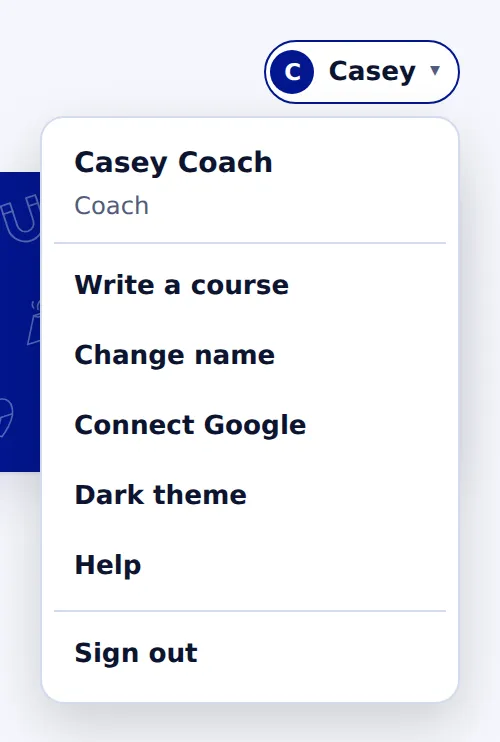
You can write the course for every event the admin assigned you. The admin can also make someone an author of a course they don’t coach. If you see Write a course in your account menu, you’re an author of at least one course.
 (opens full size)
This works for every course built with the site’s course engine: most events, and any new course. Five courses are built by hand and can’t be edited this way: Disease Detectives, Rocks and Minerals, Write It Do It, Thermodynamics and Boomilever. To suggest a change to one of those, use Help.
Who sees your changes? Students see what you publish right away, once the course is open to them (In development or Live). While a course is a Draft, only its authors and the admins see it.
Your team’s own copy. A coach’s changes go into your team’s own copy of the course. Only your team’s students see it, and other teams keep the shared course. When the shared course gets better, the coach dashboard shows how many updates there are, and Course updates lets you take the ones you want.
Edit a page in place
The quickest way to fix something. You change the words right where students read them.
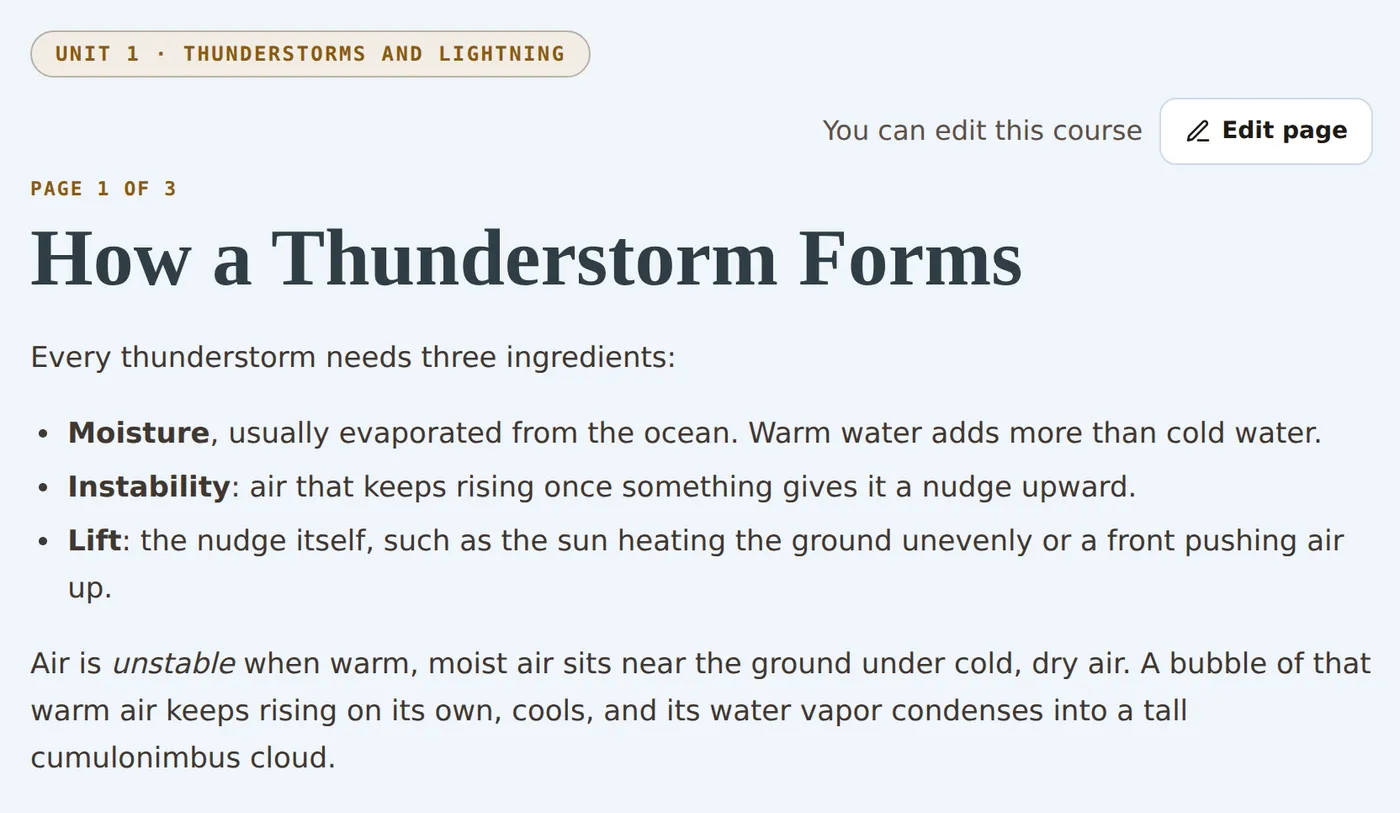
Open the page and choose Edit page
Open any lesson page of your course. Authors see You can edit this course and an Edit page button above the title.
 (opens full size)
Click a box and type
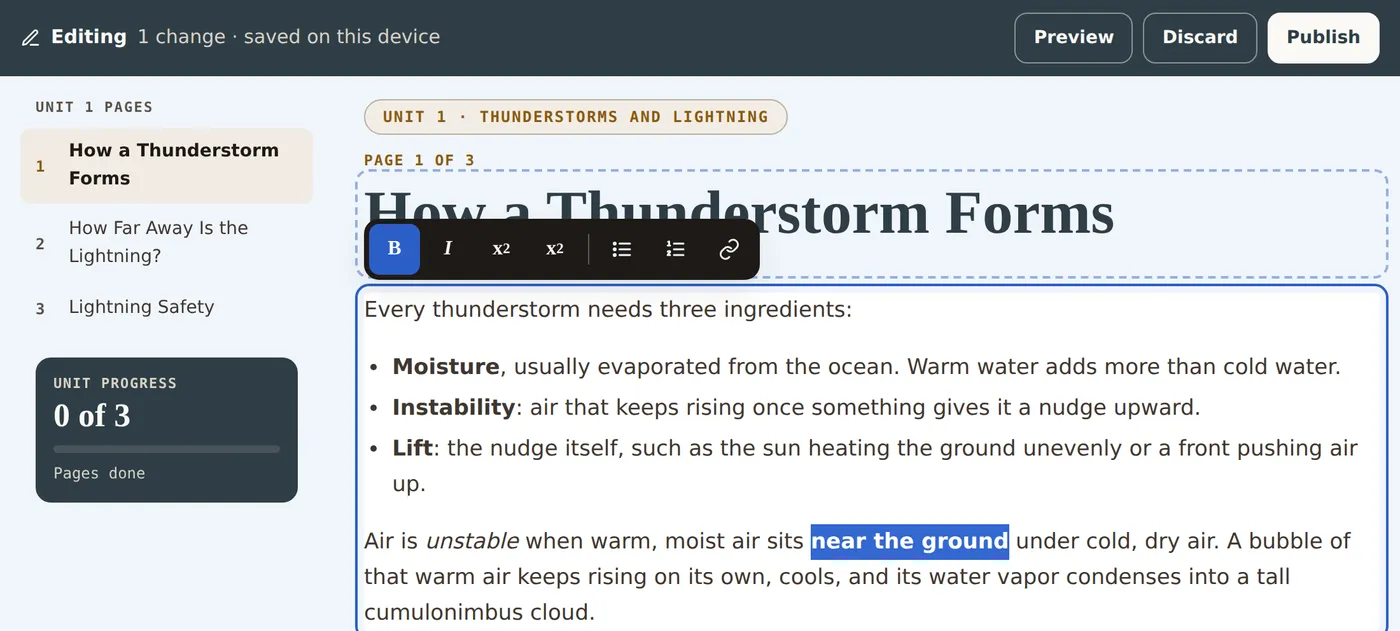
Everything you can change has a dashed outline: the title, text, notes, steps, and a picture’s caption and description. Click into one and type, just like a document.
Format with the toolbar
Select some words and use the toolbar: bold, italic, superscript (m2), subscript (H2O), bulleted and numbered lists, and links. Ctrl+B and Ctrl+I work too (⌘B and ⌘I on a Mac). Text you paste from Google Docs or Word keeps its bold and italic and drops the rest.
 (opens full size)
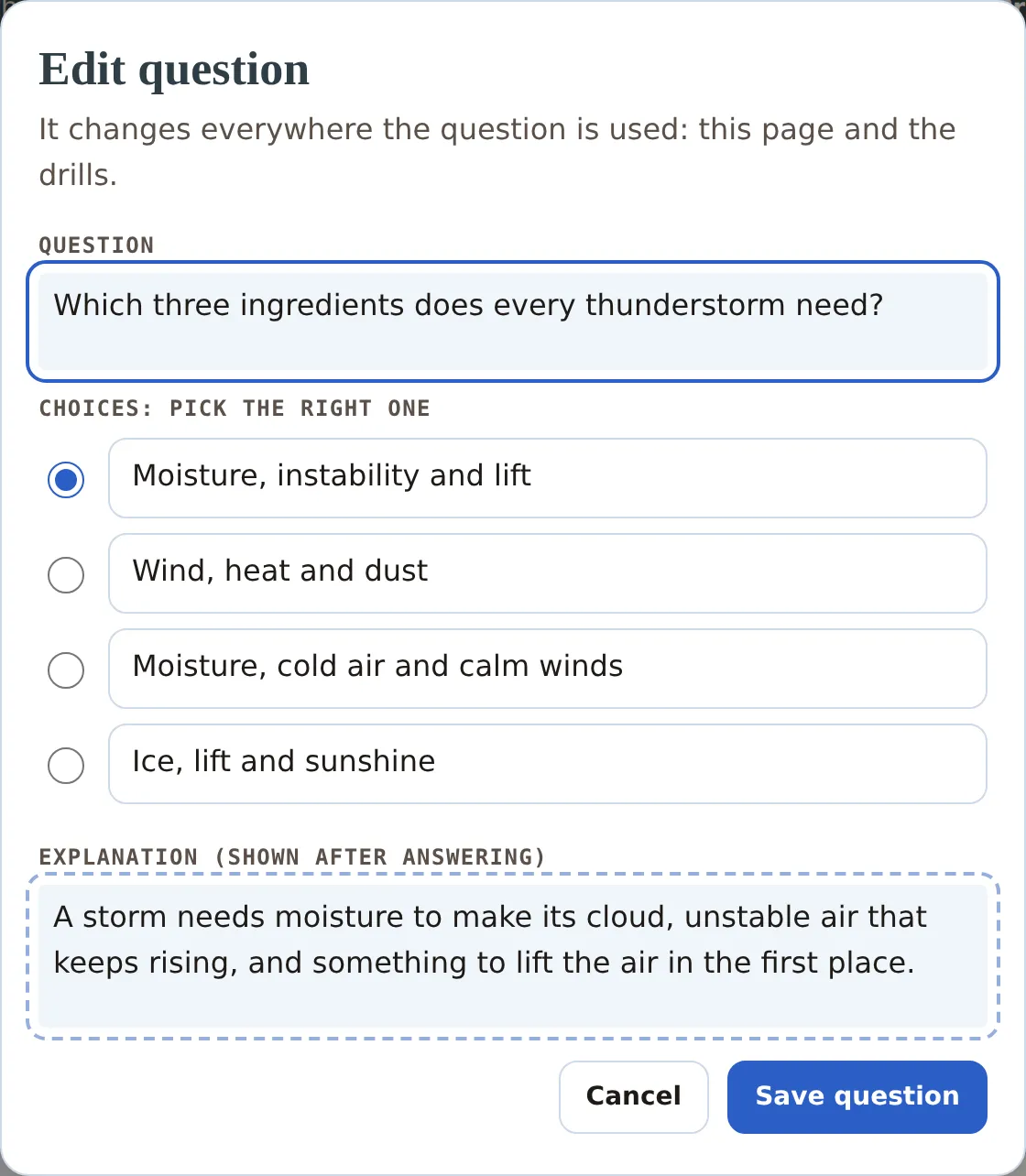
Fix a question
Multiple choice, pick-all and true or false questions have an Edit question button. Change the question, the choices, which one is right, or the explanation. The change shows everywhere the question is used, including drills.
 (opens full size)
Preview, then Publish
Preview shows the page exactly as students will see it. You can edit several pages before you publish: your changes wait on this device until you’re ready. Publish shows every change word by word, runs the course check, and asks you to confirm you checked your facts. Add a short note about what you changed, and it goes live.
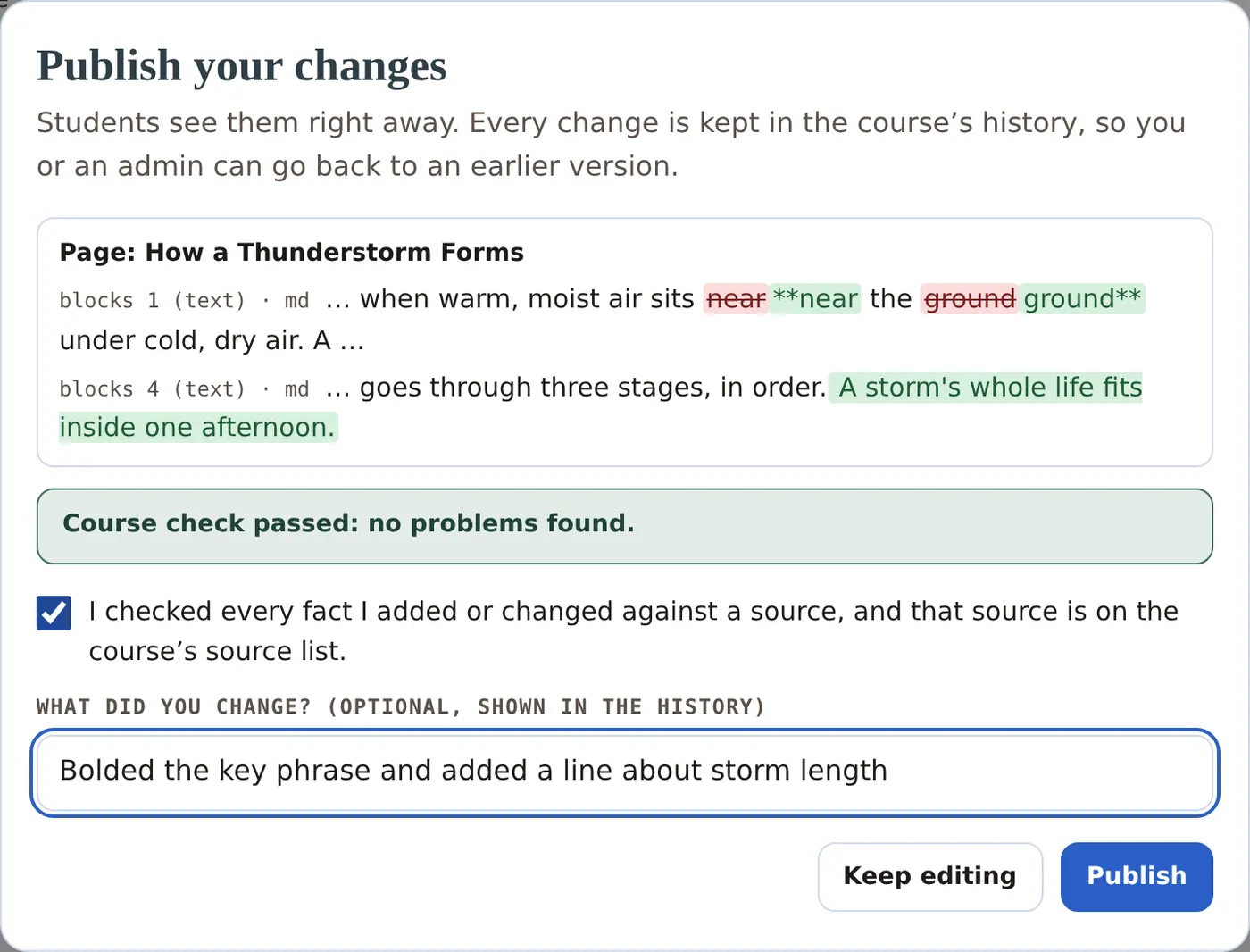 (opens full size)
Some parts change only in an upload: worked examples, flip cards, calculators, charts, the sort, label and hotspot activities, other kinds of questions, and adding, removing or moving pages and steps. They show a lock and the words “Change it in an upload”. See Write or rewrite the whole course.
If someone else publishes while you edit, your Publish is stopped so you don’t overwrite their work. Reload the page: your changes to pages they didn’t touch are kept, and the page tells you about any it couldn’t keep.
Write or rewrite the whole course
For bigger work, like new units, pages, pictures, activities or drills, your AI assistant writes the course file and you publish it from the upload page. Choose Write a course in your account menu to open it.
Download the kit
The kit has everything your assistant needs: the course format and style rules, a sample course, the event’s topics and rules, and the live course so it changes what’s there instead of starting over. Add it to Claude as a skill, or attach its files to a chat, and ask for course.json.
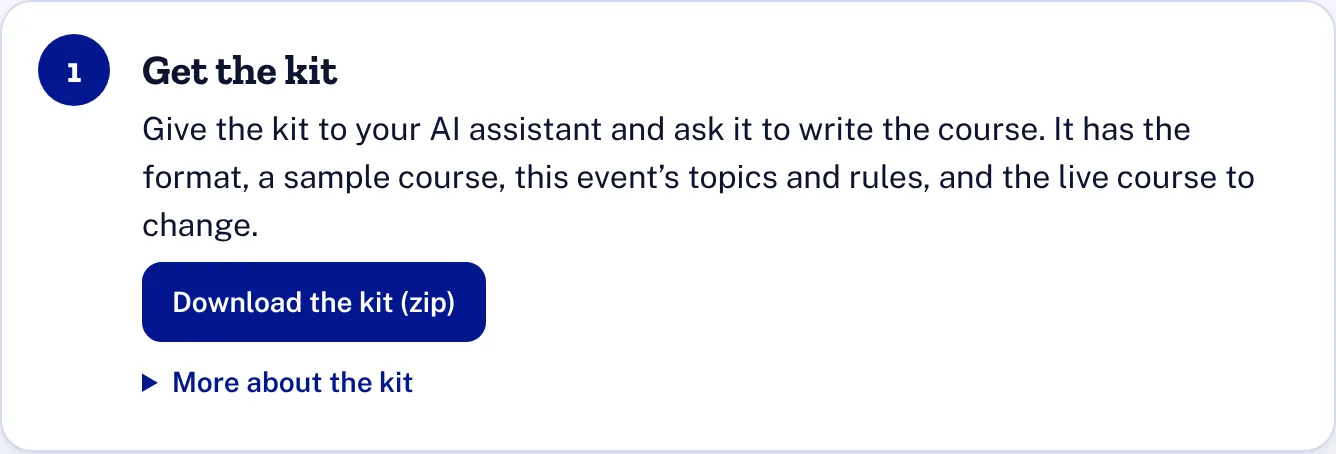 (opens full size)
Upload your course
Drop in the .zip your assistant made, or the course.json it wrote and any pictures it names, all in one box. The page checks it at once and lists anything to fix. Copy the list for your AI assistant makes fixing easy: paste the list back to your assistant.
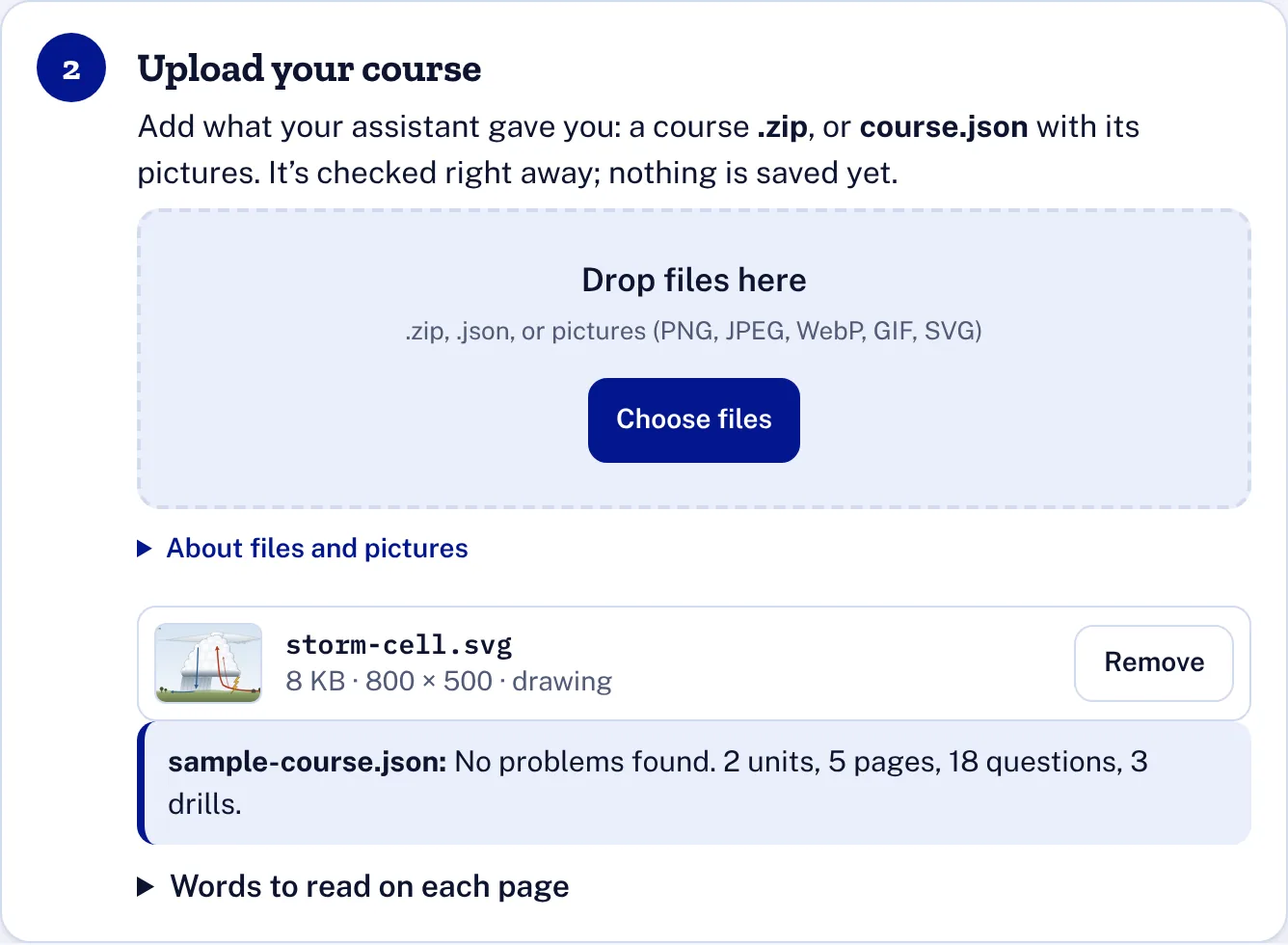 (opens full size)
Preview and publish
Preview opens your file in a new tab as students will see it, without saving anything. If you gave your assistant past tournament tests, upload them so they join the archive the site uses to write its courses (students never see it), or tick I didn’t use past tests. Say what you changed, then choose Publish.
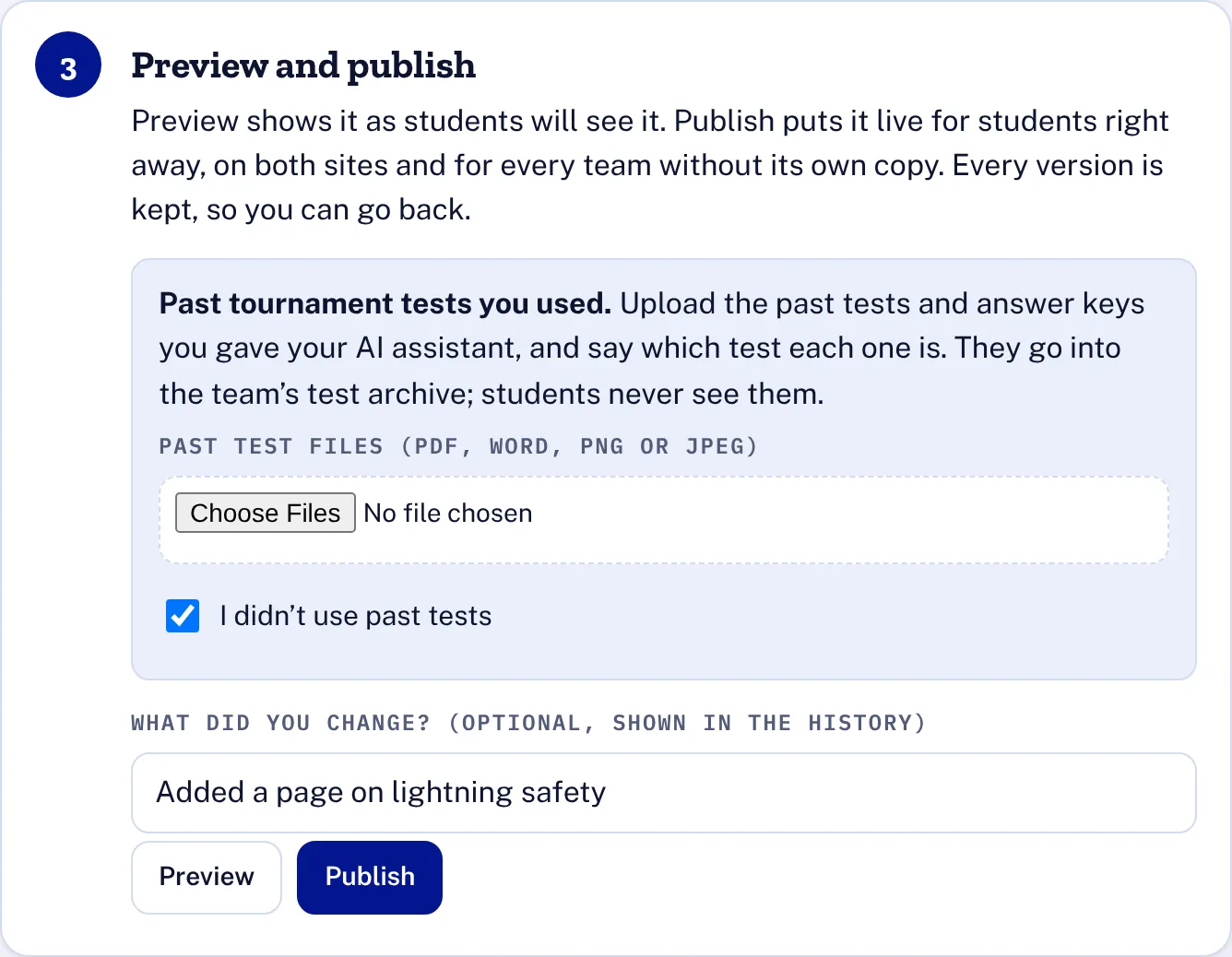 (opens full size)
Have another AI check it (optional)
For a second opinion on the facts, give a different AI assistant these files from the kit: <event>-course.json (the whole live course, once it’s published), <event>-rules.md and SKILL.md. Add the past tests zip if you want it to check that the course matches what tournaments ask and copies nothing. Then paste this:
Fact-check this course. Use the five passes in SKILL.md’s “Fact-checking” section: check every fact against a reliable source, flag claims that are too strong, recompute every number, answer key and calculator test, check that drawings, charts and activities match the text, and make sure each fact says the same thing everywhere it appears. Also check event facts against the rules file. For each problem, give where it is (page title or question id), what’s wrong, the fix and your source. Don’t rewrite the course.
Fix what it finds with Edit page, or have your own assistant change course.json and publish it again. Photos from other sites are only addresses in the file, so ask the reviewer to open those links too.
The first time you publish, you’re asked to agree to the contributor note: we can use what you write, it’s yours to share, it isn’t copied, it’s safe for students, and admins can see and change it.
The history, and going back
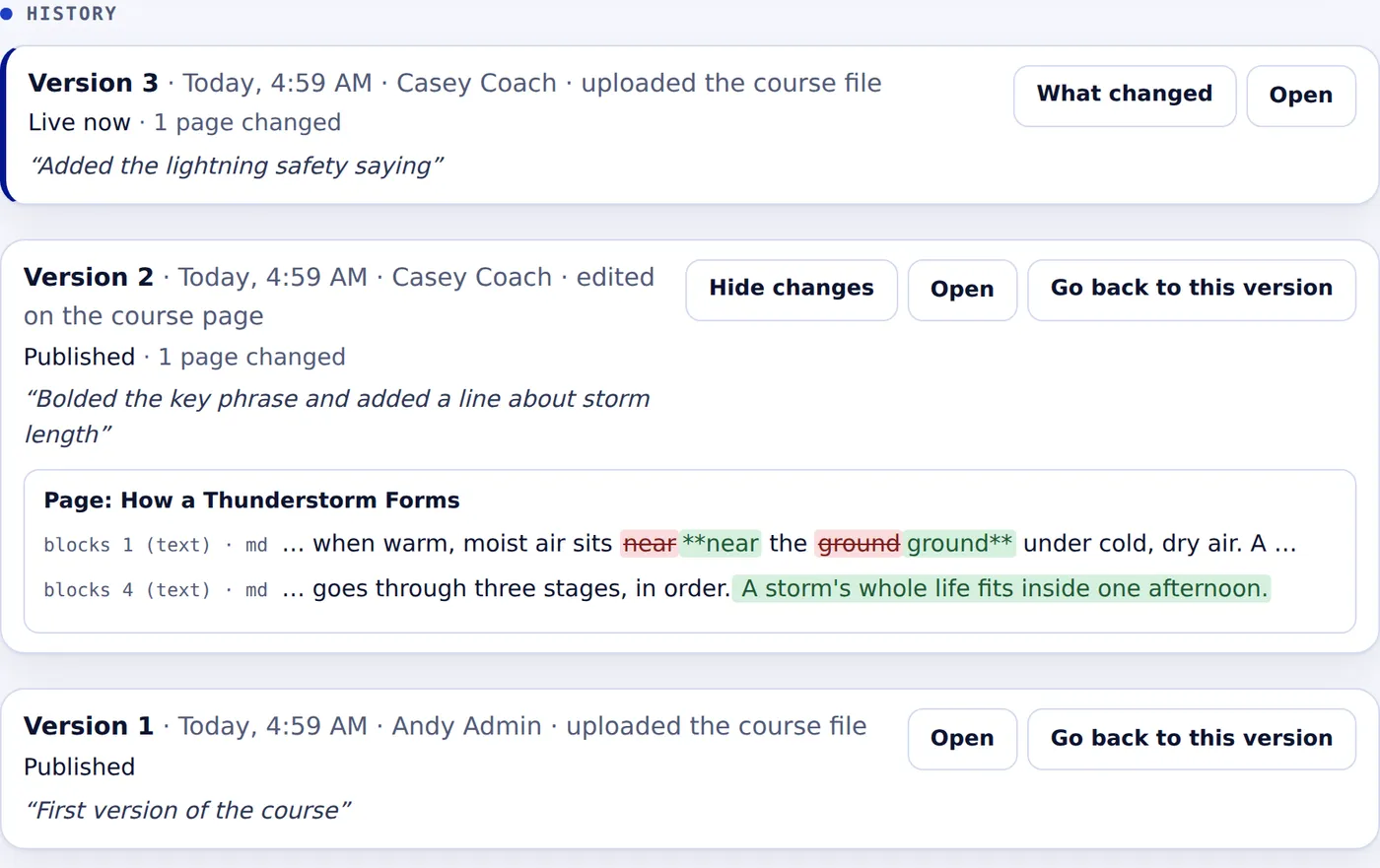
Every version of the course is kept: who published it, how (an upload, an edit on the page, or going back), their note, and what changed. Find it under History at the bottom of the upload page.
 (opens full size)
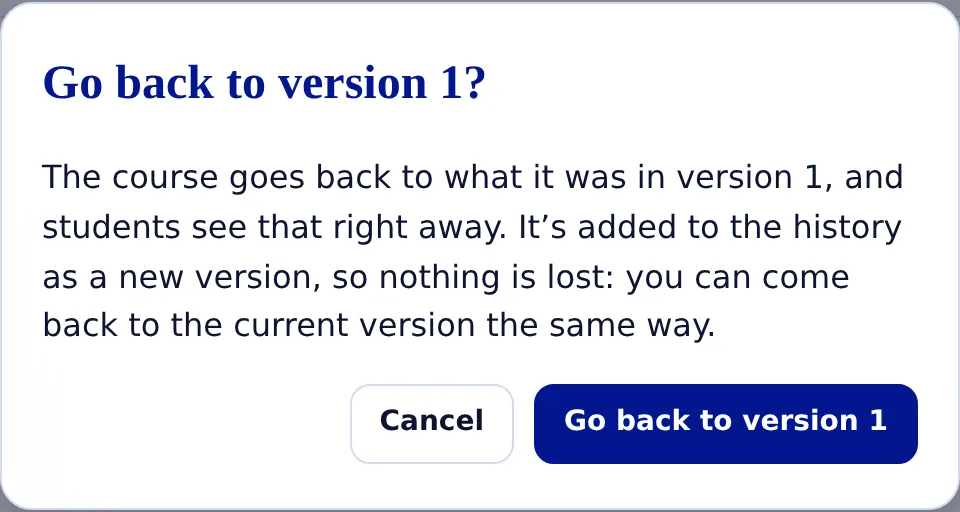
Made a mistake? Choose Go back to this version on the version you want. The course goes back to it right away. It’s added to the history as a new version, so nothing is lost: you can come back to the newer one the same way.
 (opens full size)
Admins see every change too. They can read the history on the admin page and mark what they’ve looked at, so there’s no need to ask before you publish.
Tests for your group
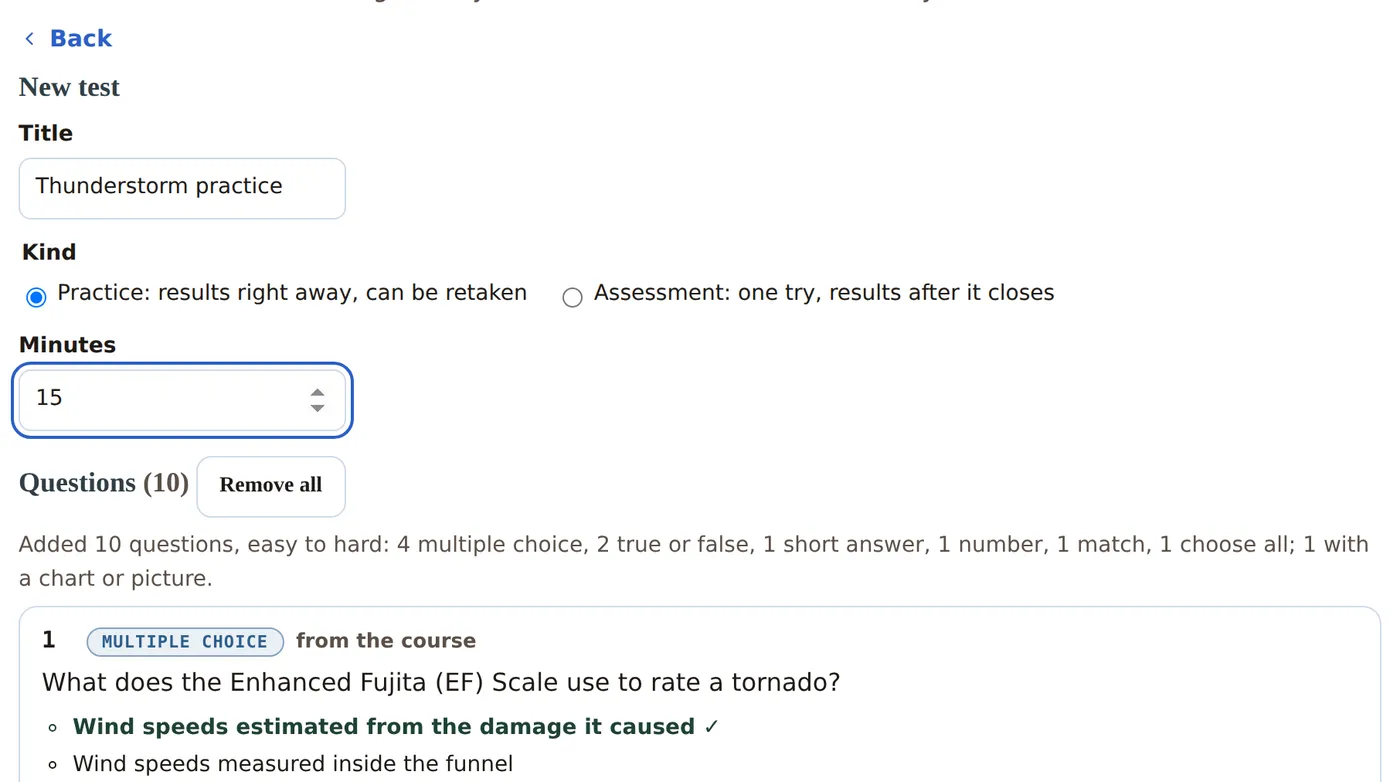
On your coach dashboard, open the Tests tab to build practice tests and assessments for your group. A new test starts with a tournament-style mix of the course’s questions. Swap, edit, reorder or remove any of them, or write your own. Tests belong to your group: they don’t change the course.
 (opens full size)
See Building practice tests and assessments for every step: giving a test to your group, results, printing and Google Forms.
Ground rules
- Check every fact. Use a trusted source, like NOAA, the CDC, USGS or a textbook, and make sure that source is on the course’s source list.
- Write it yourself. Never copy questions, cases or pictures from past tournament tests, the rules manual, textbooks or other sites. Past tests are for ideas only. Keep them to yourself.
- Keep it about the event. Teach the topics in the rules, in plain words for middle schoolers.
- Keep students safe. No student’s name, photo or other personal information.
- Say what you changed. A short note in the history helps the next author and the admins.
Questions
Can I break the course?
Not for long. The course check stops anything that won’t work, like a missing answer or a broken picture, before it’s published. If something still isn’t right, go back to an earlier version in one step.
Do my changes get lost if I close the tab?
No. Changes made on a page are saved on that device as you type, and wait there until you publish or discard them. They’re on that device only, so finish on the same computer or tablet.
Will students lose their progress when I change a page?
No. Progress is kept by each page and question, so edits keep it. Only removing a page or question in an upload drops the progress on it.
Why don’t I see Edit page?
You see it only on the courses you’re an author of, and only on lesson pages. If you think you should be an author, ask the admin to check your events.
Can I add a new page or picture on the page itself?
Not yet. New pages, pictures, charts and activities come in through the upload page, written with the kit.
Still stuck? See Help to write to us, or Getting started for the rest of what coaches can do.